Rich Text Editor User Guide
Rich Text Editor Basics
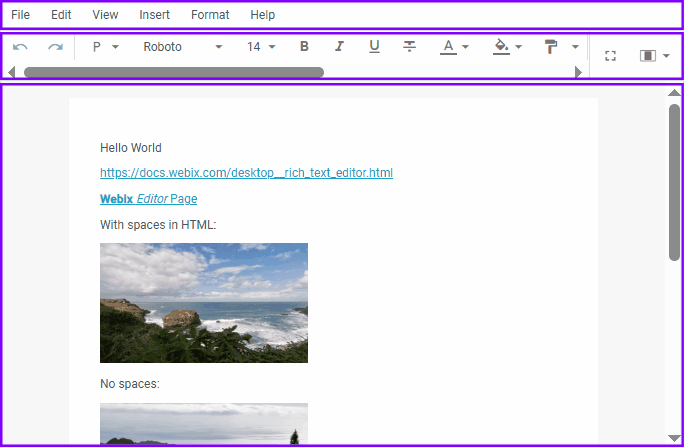
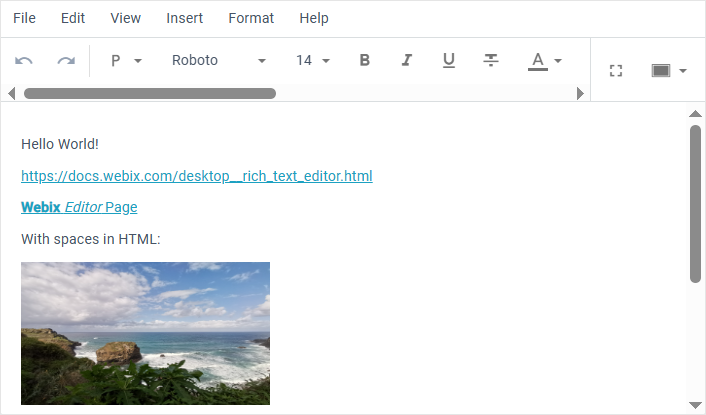
Rich Text Editor is visually divided into three sections:
- Menubar (optional)
- Toolbar (optional)
- Text Editor
Menubar
The menubar in its basic configuration consists of the following items with submenus:
- File
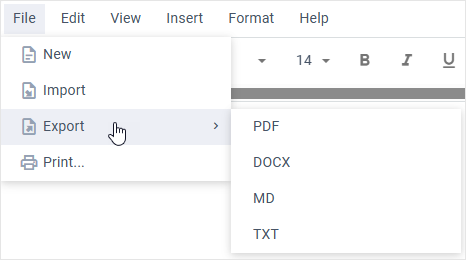
Submenu options of the File item allow:
- resetting the editor's workspace (this action can be undone via the Undo command);
- importing files from the .docx, .txt and .md formats;
- exporting content to the .docx, .pdf, .txt and .md formats;
- printing content.
- Edit
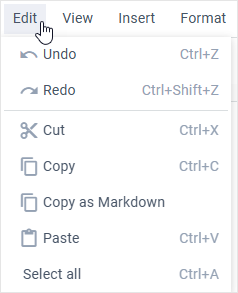
The submenu of the Edit item includes:
- undo/redo actions;
- clipboard operations (cut, copy, copy as markdown, paste, paste as markdown);
- the option for selecting all the content.
- View
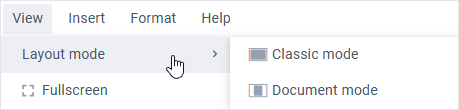
The View item's submenu includes:
- the layout mode option (can be set to "classic" or "document");
- the option for toggling the fullscreen mode.
- Insert
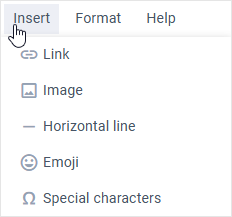
The Insert item allows you to add links, images, horizontal lines, emojis, and special characters to your text.
- Format
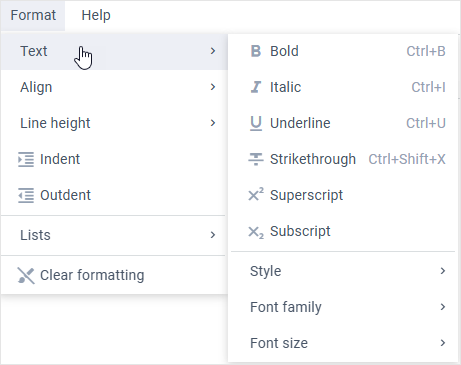
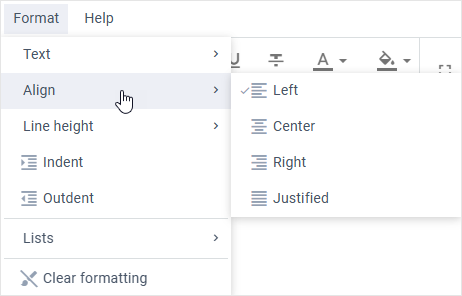
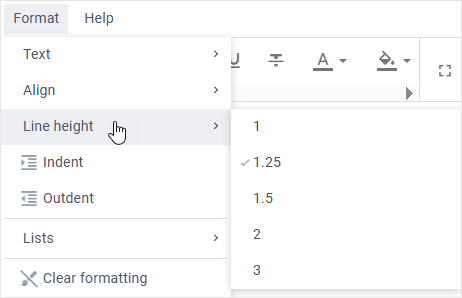
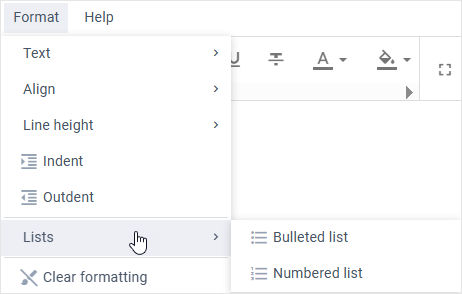
The Format submenu offers a number of content formatting possibilities:
- styling options, including font family and size, content blocks (paragraph, quote, headings), underline and strikethrough, superscript and subscript;
- alignment of the content: left, right, center and justified;
- line height;
- indentation settings: indent and outdent;
- list formatting: bullets and numbering;
- removing the applied formatting.
- Help
The Help item includes two options: Help and Hotkeys.
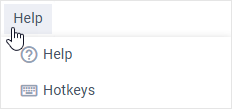
Selecting the Help item opens a link to the Rich Text Editor documentation.
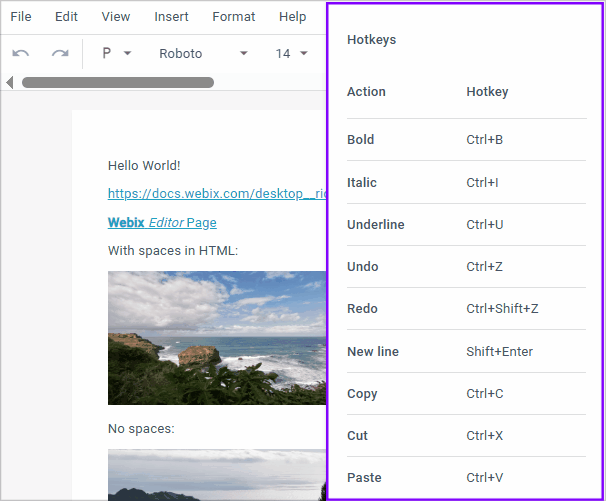
Clicking the Hotkey item displays a popup with a list of keyboard shortcuts on the right side of the widget.
Toolbar

The default Toolbar of the Rich Text Editor consists of the following buttons and button groups:
Undo/Redo controls;

Rich Text Editor styling controls:
- Style (for content blocks such as paragraph, quote, headings);
- Font family, Font size, Bold, Italic, Underline, Strikethrough;
- Text color and Background color;
- Paint format that has a continuous painting option (ensures continuous format application);

content alignment controls: Left align, Center align, Right align, and Justify;

Line height control with options;

Indent and Outdent controls;

Insert link and Insert image controls;

Bulleted list and Numbered list controls;

Clear formatting control;

Full screen and Layout mode controls.
Text Editor
Text editor is the main workspace for inputting and working with the content: editing, styling, formatting, integrating images and links, adding emojis and special characters.
Layout Modes
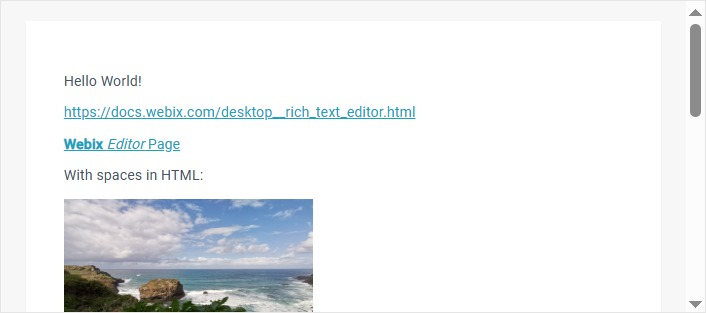
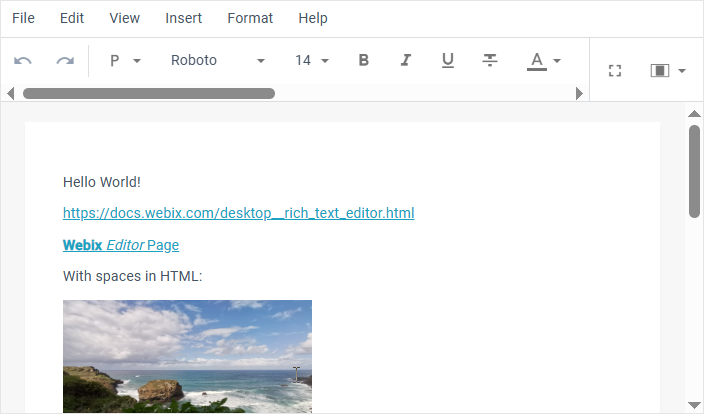
Rich Text Editor offers two layout modes for working with the content:
- Classic
- Document
Working with Links and Images
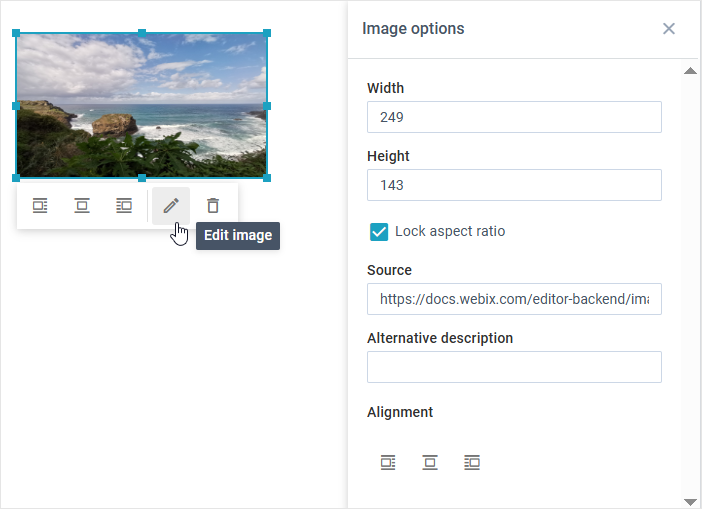
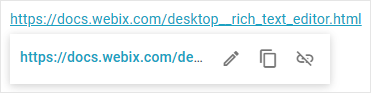
Users can work with links and images via the menubar, toolbar and directly within the text editor. To access operations available in the text editor, simply click a link or image and you will see a toolbar with options:
- link:
- Edit link;
- Copy link;
- Unlink.
- image:
- Left align;
- Center align;
- Right align;
- Edit image;
- Delete image.
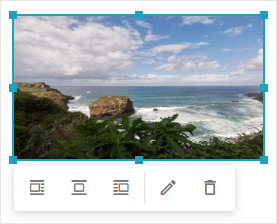
The edit option for images opens a panel on the right side of the text editor. The panel allows you to specify the width and height of the image, lock aspect ratio for proportional resizing, modify the image source, add a description, and set the alignment.